Windows Tutorials - Herong's Tutorial Examples - v5.62, by Dr. Herong Yang
Home Network Wireless Connection Settings
This section provides a tutorial example of how to view and change wireless connection settings with the DSL modem acting as a home network gateway.
As we can see from the previous section, the home network provided by the gateway modem has two parts:
- The Ethernet Network - Up to 4 computers can be connected to Ethernet ports of the gateway modem with Ethernet cables.
- The Wireless Network - Many computers can be connected to the wireless receiver of the gateway modem without any cables.
The configuration of the Ethernet network part is very simple. So let's review the configuration of the wireless network part only.
1. Open a Web browser and enter this address: http://192.168.2.1/. The configuration main page shows up.
2. Click the "Home Network" icon on top of the page. The home network summary page shows up.
3. Click the "Wireless Settings" menu entry. The wireless settings page shows up:
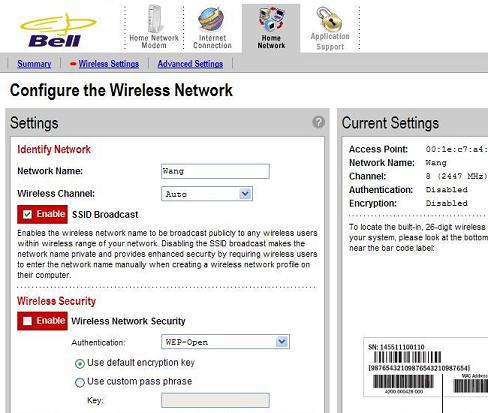
4. Change the Network Name to "Wang". Keep SSID Broadcast enabled so that my laptop can see the wireless network named as "Wang".
5. Change the Wireless Network Security to be enabled and keep the "Use default encryption key" radio button checked. From now on, when connecting my laptop to Wang's wireless network, I need to enter the default encryption key, which is printed on the back of the modem.
Table of Contents
Introduction to Microsoft Windows
Introduction to Windows Explorer
Introduction to Internet Explorer
"Paint" Program and Computer Graphics
GIMP - GNU Image Manipulation Program
JPEG Image File Format Quality and Size
GIF Image File Format and Transparent Background
"WinZip" - ZIP File Compression Tool
"WinRAR" - RAR and ZIP File Compression Tool
FTP Server, Client and Commands
"FileZilla" - Free FTP Client and Server
Web Server Log Files and Analysis Tool - "Analog"
Spyware Adware Detection and Removal
IE Addon Program Listing and Removal
Vundo (VirtuMonde/VirtuMundo) - vtsts.dll Removal
Trojan and Malware "Puper" Description and Removal
VSToolbar (VSAdd-in.dll) - Description and Removal
Spybot - Spyware Blocker, Detection and Removal
Setting Up and Using Crossover Cable Network
►Home Network Gateway - DSL Modem/Wireless Router
Wireless DSL Modem Gateway - Connection View
Wireless DSL Modem Gateway - Network View
DSL Modem Connection and DSL Filters
Connecting a Computer to the DSL Modem with a Cable
Home Network Modem Gateway Configuration
DSL Modem Internet Connection Details
Home Network Configuration Summary
►Home Network Wireless Connection Settings
Windows Task Manager - The System Performance Tool
"tasklist" Command Line Tool to List Process Information
"msconfig" - System Configuration Tool
Configuring and Managing System Services
Windows Registry Key and Value Management Tools