Windows Tutorials - Herong's Tutorial Examples - v5.62, by Dr. Herong Yang
Connecting a Computer to the DSL Modem with a Cable
This section provides a tutorial example of how to connect a computer to the DSL modem with a network cable through Ethernet ports.
With the DSL modem connected correctly, we added the first computer to the home network by connecting it to the DSL modem with a network cable by following these steps:
1. Plug one end of the network cable to one of 4 Ethernet ports.
2. Plug the other end of the network cable to the Ethernet port of the computer.
3. Start the computer.
4. Verify lights on Ethernet ports. They should be lit on both ends of the network cable.
5. Start a Web browser and visit http://www.google.com. We saw the Google page showing up.
The telephone company did a great job by shipping the DSL modem with perfect default settings. Everything works automatically, as long as you connect the modem and the computer correctly.
Here is a picture showing how the home computer communicates with Google through the DSL modem.
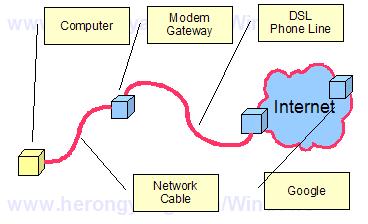
Table of Contents
Introduction to Microsoft Windows
Introduction to Windows Explorer
Introduction to Internet Explorer
"Paint" Program and Computer Graphics
GIMP - GNU Image Manipulation Program
JPEG Image File Format Quality and Size
GIF Image File Format and Transparent Background
"WinZip" - ZIP File Compression Tool
"WinRAR" - RAR and ZIP File Compression Tool
FTP Server, Client and Commands
"FileZilla" - Free FTP Client and Server
Web Server Log Files and Analysis Tool - "Analog"
Spyware Adware Detection and Removal
IE Addon Program Listing and Removal
Vundo (VirtuMonde/VirtuMundo) - vtsts.dll Removal
Trojan and Malware "Puper" Description and Removal
VSToolbar (VSAdd-in.dll) - Description and Removal
Spybot - Spyware Blocker, Detection and Removal
Setting Up and Using Crossover Cable Network
►Home Network Gateway - DSL Modem/Wireless Router
Wireless DSL Modem Gateway - Connection View
Wireless DSL Modem Gateway - Network View
DSL Modem Connection and DSL Filters
►Connecting a Computer to the DSL Modem with a Cable
Home Network Modem Gateway Configuration
DSL Modem Internet Connection Details
Home Network Configuration Summary
Home Network Wireless Connection Settings
Windows Task Manager - The System Performance Tool
"tasklist" Command Line Tool to List Process Information
"msconfig" - System Configuration Tool
Configuring and Managing System Services
Windows Registry Key and Value Management Tools