Unicode Tutorials - Herong's Tutorial Examples - v5.32, by Herong Yang
Saving Files in "Unicode Text (*.txt)" Option
This section provides a tutorial example on how to save Unicode text file with Excel using the 'Unicode Text (*.txt)' file type option.
In the next test, I want to try the save function with the "Unicode Text (*.txt)" option.
1. Run Excel and open hello.utf-8 correctly with the Unicode (UTF-8) encoding option selected.
2. Click the File > "Save As" menu. The "Save As" dialog box comes up.
3. Enter excel_utf-16.txt as the new file name and select the "Unicode Text (*.txt)" option in the "Save as Type" field.
4. Click the Save button. A warning dialog box comes up:
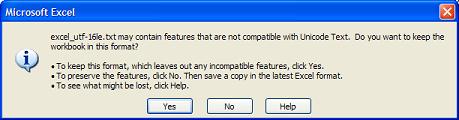
5. The warning message says: "excel_utf-16le.txt may contain features that are not compatible with Unicode Text. Do you want to keep workbook in this format? To keep this format, which leaves out any incompatible features, click Yes..."
6. Click Yes to ignore the warning. Excel saves the text to a new file named as: excel_utf-16.txt.
7. To see how my text is saved by Excel, I need to run my HEX dump program on excel_utf-16.txt:
C:\herong\unicode>java HexWriter excel_utf-16.txt excel_utf-16.hex
Number of input bytes: 170

C:\herong\unicode>type excel_utf-16le.hex
FFFE480065006C006C006F0020006300
6F006D00700075007400650072002100
20002D00200045006E0067006C006900
730068000D000A0035751181604F7D59
01FF20002D002000530069006D007000
6C006900660069006500640020004300
680069006E006500730065000D000A00
FB966681604F7D5957FE20002D002000
54007200610064006900740069006F00
6E0061006C0020004300680069006E00
6500730065000D000A00
Very nice. This is a perfect UTF-16 encoding file using the Little-Endian with BOM format. Those leading 2 bytes represent the BOM flag, which is not part of the text.
Conclusion - The "Unicode Text (*.txt)" encoding option of Excel matches the "Little-Endian with BOM" format of Unicode UTF-16 encoding.
Table of Contents
ASCII Character Set and Encoding
GB2312 Character Set and Encoding
GB18030 Character Set and Encoding
JIS X0208 Character Set and Encodings
UTF-8 (Unicode Transformation Format - 8-Bit)
UTF-16, UTF-16BE and UTF-16LE Encodings
UTF-32, UTF-32BE and UTF-32LE Encodings
Python Language and Unicode Characters
Java Language and Unicode Characters
Encoding Conversion Programs for Encoded Text Files
Using Notepad as a Unicode Text Editor
Using Microsoft Word as a Unicode Text Editor
►Using Microsoft Excel as a Unicode Text Editor
►Saving Files in "Unicode Text (*.txt)" Option