Java Swing Tutorials - Herong's Tutorial Examples - Version 4.11, by Dr. Herong Yang
showOptionDialog() - Displaying Option Dialog Boxes
This section provides a tutorial example on how to use the static method, showInputDialog(), to create and display input dialog boxes to take text string input from the user.
The fourth type of dialog boxes you can create and display with the javax.swing.JOptionPane class is the option dialog box. This can be done with the static method: answer = showOptionDialog(frame, message, title, 0, type, icon, options, default), where:
- "frame" is a frame object to be used as the parent frame.
- "message" is the message string to be display on the dialog box.
- "title" is the title string to be used as the dialog box title.
- "0" is an place holder for an integer code representing a specific confirmation option type. Valid type codes are predefined as constants in the JOptionPane class: YES_NO_OPTION, YES_NO_CANCEL_OPTION, and OK_CANCEL_OPTION. But this parameter has no impact on the result.
- "type" is an integer code representing a specific message dialog box type. Valid type codes are predefined as constants in the JOptionPane class: INFORMATION_MESSAGE, WARNING_MESSAGE, ERROR_MESSAGE and PLAIN_MESSAGE.
- "icon" is an image object to be displayed as the message icon.
- "options" is an array of strings representing different options for the user to select.
- "default" is the default string to be pre-selected on the option dialog box.
- "answer" is the returned integer index of the "options" array representing the option string selected by the user.
Here is an example program I wrote to test the showOptionDialog() method:
/* JOptionPaneOptionDialog.java
 * Copyright (c) 2014, HerongYang.com, All Rights Reserved.
 */
import java.awt.*;
import java.awt.event.*;
import javax.swing.*;
import javax.swing.event.*;
public class JOptionPaneOptionDialog implements ActionListener {
   JFrame myFrame = null;
   public static void main(String[] a) {
      (new JOptionPaneOptionDialog()).test();
   }
   private void test() {
      myFrame = new JFrame("showOptionDialog() Test");
      myFrame.setDefaultCloseOperation(JFrame.EXIT_ON_CLOSE);
      Container myPane = myFrame.getContentPane();
      JButton myButton = new JButton("Show");
      myButton.addActionListener(this);
      myPane.add(myButton);
      myFrame.pack();
      myFrame.setVisible(true);
   }
   public void actionPerformed(ActionEvent e) {
      int messageType = JOptionPane.QUESTION_MESSAGE;
      String[] options = {"Java", "C++", "VB", "PHP", "Perl"};
      int code = JOptionPane.showOptionDialog(myFrame,
         "What language do you prefer?",
         "Option Dialog Box", 0, messageType,
         null, options, "PHP");
      System.out.println("Answer: "+code);
   }
}
If you run this example, and click the Show button,
you will see an input dialog box showing up like this:
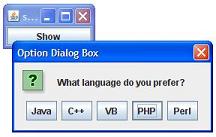
Select "Perl" on the option dialog box. Repeat the test with the "Java" option button and the close dialog box icon. You will see some messages printed on the Java console window:
Answer: 4
Answer: 0
Answer: -1
Interesting notes about this tutorial example:
- If closes the option dialog box, showOptionDialog() returns JOptionPane.CLOSED_OPTION, which is -1.
Sample programs listed in this section have been tested with JDK 1.6.0 to 1.8.0.
Last update: 2014.
Table of Contents
Introduction of Java Swing Package
Graphics Environment of the Local System
JRadioButton - Swing Radio Button Class
JTextField - Swing Text Field Class
Menu Bar, Menus, Menu Items and Listeners
Creating Internal Frames inside the Main Frame
Layout of Components in a Container
javax.swing.JOptionPane - Creating and Displaying Option Dialog Boxes
showMessageDialog() - Displaying Message Dialog Boxes
showConfirmDialog() - Displaying Confirmation Dialog Boxes
Receiving Inputs from Confirmation Dialog Boxes
showInputDialog() - Displaying Input Dialog Boxes
►showOptionDialog() - Displaying Option Dialog Boxes
showInternal*Dialog() - Displaying Internal Dialog Boxes
createDialog() - Creating Dialog Boxes Directly
JEditorPane - The Editor Pane Class