Java Swing Tutorials - Herong's Tutorial Examples - Version 4.11, by Dr. Herong Yang
showMessageDialog() - Displaying Message Dialog Boxes
This section provides a tutorial example on how to use the static method, showMessageDialog(), to create and display message dialog boxes for 4 different type of messages: information, warning, error, and plain.
The simplest dialog box you can create and display with the javax.swing.JOptionPane class is the message dialog box. This can be done with the static method: showMessageDialog(frame, message, title, type), where:
- "frame" is a frame object to be used as the parent frame.
- "message" is the message string to be display on the dialog box.
- "title" is the title string to be used as the dialog box title.
- "type" is an integer code representing a specific message dialog box type. Valid type codes are predefined as constants in the JOptionPane class: INFORMATION_MESSAGE, WARNING_MESSAGE, ERROR_MESSAGE and PLAIN_MESSAGE.
Here is an example program I wrote to test the showMessageDialog() method:
/* JOptionPaneShowMessageDialog.java
 * Copyright (c) 2014, HerongYang.com, All Rights Reserved.
 */
import java.awt.event.*;
import javax.swing.*;
import javax.swing.event.*;
public class JOptionPaneShowMessageDialog implements ActionListener {
   JFrame myFrame = null;
   public static void main(String[] a) {
      (new JOptionPaneShowMessageDialog()).test();
   }
   private void test() {
      myFrame = new JFrame("showMessageDialog Test");
      myFrame.setDefaultCloseOperation(JFrame.EXIT_ON_CLOSE);
      myFrame.setBounds(50,50,250,150);
      myFrame.setContentPane(new JDesktopPane());
      JMenuBar myMenuBar = new JMenuBar();
      JMenu myMenu = getDialogMenu();
      myMenuBar.add(myMenu);
      myFrame.setJMenuBar(myMenuBar);
      myFrame.setVisible(true);
   }
   private JMenu getDialogMenu() {
      JMenu myMenu = new JMenu("Dialogs");
      JMenuItem myItem = new JMenuItem("Information");
      myItem.addActionListener(this);
      myMenu.add(myItem);
      myItem = new JMenuItem("Warning");
      myItem.addActionListener(this);
      myMenu.add(myItem);
      myItem = new JMenuItem("Error");
      myItem.addActionListener(this);
      myMenu.add(myItem);
      myItem = new JMenuItem("Plain");
      myItem.addActionListener(this);
      myMenu.add(myItem);
      return myMenu;
   }
   public void actionPerformed(ActionEvent e) {
      String menuText = ((JMenuItem) e.getSource()).getText();
      int messageType = JOptionPane.INFORMATION_MESSAGE;
      if (menuText.equals("Information")) {
      	 messageType = JOptionPane.INFORMATION_MESSAGE;
      } else if (menuText.equals("Warning")) {
      	 messageType = JOptionPane.WARNING_MESSAGE;
      } else if (menuText.equals("Error")) {
      	 messageType = JOptionPane.ERROR_MESSAGE;
      } else if (menuText.equals("Plain")) {
      	 messageType = JOptionPane.PLAIN_MESSAGE;
      }

      System.out.println("Before displaying the dialog: "+menuText);
      JOptionPane.showMessageDialog(myFrame,
         "This is message dialog box of type: "+menuText,
         menuText+" Message", messageType);
      System.out.println("After displaying the dialog: "+menuText);
   }
}
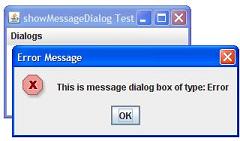
If you run this example, open the "Dialogs" menu,
and click "Information", "Warning" or "Error" menu item,
you will see a message dialog box showing up like this:
Sample programs listed in this section have been tested with JDK 1.6.0 to 1.8.0.
Last update: 2014.
Table of Contents
Introduction of Java Swing Package
Graphics Environment of the Local System
JRadioButton - Swing Radio Button Class
JTextField - Swing Text Field Class
Menu Bar, Menus, Menu Items and Listeners
Creating Internal Frames inside the Main Frame
Layout of Components in a Container
javax.swing.JOptionPane - Creating and Displaying Option Dialog Boxes
►showMessageDialog() - Displaying Message Dialog Boxes
showConfirmDialog() - Displaying Confirmation Dialog Boxes
Receiving Inputs from Confirmation Dialog Boxes
showInputDialog() - Displaying Input Dialog Boxes
showOptionDialog() - Displaying Option Dialog Boxes
showInternal*Dialog() - Displaying Internal Dialog Boxes
createDialog() - Creating Dialog Boxes Directly
JEditorPane - The Editor Pane Class