CD-DVD Tutorials - Herong's Tutorial Examples - v2.23, by Dr. Herong Yang
Recording Sound with Sound Recorder
This section describes a tutorial on how to record a sound track with the Sound Recorder.
Since there was a micro phone on my computer, I tried to record some sound tracks my self with Windows Sound Recorder:
1. Click Start > All Programs > Accessories > Entertainment > Sound Recorder. The Sound Recorder window shows up.
2. Turn on micro phone and click the record icon. Sound recording starts for a length of 60 seconds.
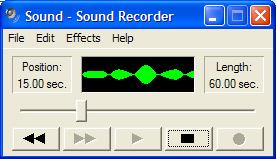
3. Sing a short song. After 60 seconds, Recording stops automatically.
4. Click the play icon. The recorded sound plays well.
5. Click menu File > Save As. The Save As dialog box shows up. The default output file format is WAV, with PCM encoding of 22.050 KHz, 16 Bit, and Mono.
6. Save the recorded sound track to C:\temp\WAV\FirstRecord.wav.
7. Check the file size of FirstRecord.wav, 2,646,058 bytes. The matches the format attributes: 22,050 samples per second * 2 bytes (16 bits) per sample * 60 seconds = 2,646,000 bytes.
Table of Contents
Audio CD (Compact Disc Digital Audio or CD-DA) Format
Audio CD (Compact Disc Digital Audio or CD-DA) Players
Audio CD (Compact Disc Digital Audio or CD-DA) Rip Music
MP3, MPEG-1 Audio Layer 3, Encoding Format
►Recording Sound with Sound Recorder
Playing Sound with Sound Recorder
Compressing WAV Files with MP3 Encoding
Validating MP3 Compression Output
DVD (Digital Video Disc) Standard Format
TOC (Table Of Contents) on CDs
IsoBuster - A Nice CD GUI Tool
vStrip - Rip and Manipulate DVD VOB Files
mpgtx - Manipulating MPEG Files