CD-DVD Tutorials - Herong's Tutorial Examples - v2.23, by Dr. Herong Yang
Compressing WAV Files with MP3 Encoding
This section describes a tutorial on how to compress WAV files with MP3 (MPEG Layer-3) encoding.
We know that WAV file format can not only store audio tracks uncompressed with PCM (Pulse-Code Modulation) encoding, but also compressed audio tracks with a codec (Coder and Decoder), like MP3 (MPEG Layer-3).
If you want to compress an uncompressed WAV file with a codec, you can use Windows Sound Recorder. Here is what I did to compress one of my WAV file ripped from an audio CD.
1. Start Sound Recorder.
2. Click menu File > Open to load the WAV file C:\temp\WAV\02-Track 2.wav.
3. Click menu File > Properties. The Properties dialog box shows up with the following information:
Length: 221:37 sec.
Data Size: 39050256 bytes
Audio Format: PCM 44.100 KHz, 16 Bit, Stereo
4. Click Convert Now button in the Format Conversion section. The Sound Selection dialog box shows up. Change settings to:
Format: MPEG Layer-3
Attributes: 256 kBit/s, 44,100
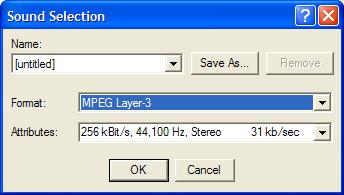
5. Click the OK button to start the compression process. The Converting progress dialog box shows up.
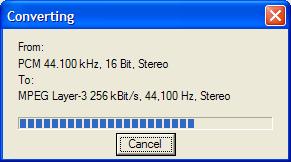
6. When compression is done, the Properties dialog box shows new properties:
Length: 221:37 sec.
Data Size: 7077460 bytes
Audio Format: MPEG Layer-3 256 kBit/s, 44,100 Hz, Stereo
7. Click the OK button to close the Properties dialog box.
8. Click File > Save As to save the compressed WAV file to C:\temp\WAV\02-Track 2-MP3.wav
Table of Contents
Audio CD (Compact Disc Digital Audio or CD-DA) Format
Audio CD (Compact Disc Digital Audio or CD-DA) Players
Audio CD (Compact Disc Digital Audio or CD-DA) Rip Music
MP3, MPEG-1 Audio Layer 3, Encoding Format
Recording Sound with Sound Recorder
Playing Sound with Sound Recorder
►Compressing WAV Files with MP3 Encoding
Validating MP3 Compression Output
DVD (Digital Video Disc) Standard Format
TOC (Table Of Contents) on CDs
IsoBuster - A Nice CD GUI Tool
vStrip - Rip and Manipulate DVD VOB Files
mpgtx - Manipulating MPEG Files