Windows Tutorials - Herong's Tutorial Examples - v5.62, by Dr. Herong Yang
Removing IE Search Provider Addons
This section provides a tutorial example on remove IE (Internet Explorer) search provider addon setting.
One group of addons supported in IE 10 is the Search Providers, which contains addons to perform searches automatically on the Web using search Web pages with different search providers.
Here is what I did to review and remove addons in the Search Providers group in IE 10:
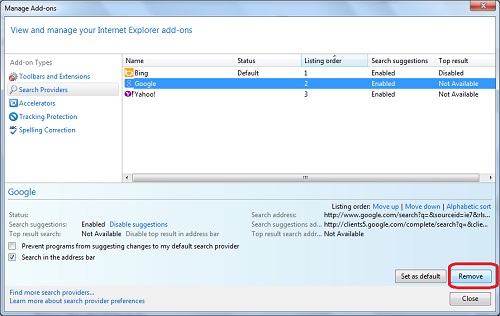
1. Click menu: Tools > Manage add-ons. You see the Manage Add-ons dialog box showing up.
2. Click "Search Providers" in the "Add-on Types" list. You see a list of search provider names like Bing, Google, and Yahoo!.
3. Click on the search provider name like "Google", then click the "Remove" button to remove this search setting.
4. Repeat step 3 to remove "Yahoo!".
5. Keep "Bing" as the only search provider, because IE does not allow you to remove it :-(.
An example of the Search Providers addon group is shown below:
After removing other search provider addons on my computer, I ran HijackThis and got these settings in the report:
R1 - HKLM\Software\Microsoft\Internet Explorer\Main,
   Default_Search_URL = http://go.microsoft.com/fwlink/?LinkId=54896
R1 - HKLM\Software\Microsoft\Internet Explorer\Main,
   Search Page = http://go.microsoft.com/fwlink/?LinkId=54896
R0 - HKLM\Software\Microsoft\Internet Explorer\Search,
   SearchAssistant =
R0 - HKLM\Software\Microsoft\Internet Explorer\Search,
   CustomizeSearch =
This confirms that there is only 1 search provider, Bing represented by the URL of Default_Search_URL = http://go.microsoft.com/fwlink/?LinkId=54896, left. And it is defined as the default search provider.
Table of Contents
Introduction to Microsoft Windows
Introduction to Windows Explorer
Introduction to Internet Explorer
"Paint" Program and Computer Graphics
GIMP - GNU Image Manipulation Program
JPEG Image File Format Quality and Size
GIF Image File Format and Transparent Background
"WinZip" - ZIP File Compression Tool
"WinRAR" - RAR and ZIP File Compression Tool
FTP Server, Client and Commands
"FileZilla" - Free FTP Client and Server
Web Server Log Files and Analysis Tool - "Analog"
Spyware Adware Detection and Removal
►IE Addon Program Listing and Removal
►Removing IE Search Provider Addons
Disabling IE Addon "Google Toolbar"
Removing IE Addon "Google Toolbar"
Disabling IE Addon "Yahoo! Toolbar"
Removing IE Addon "Yahoo! Toolbar"
Disabling IE Addon "Bing Toolbar"
Removing IE Addon "Bing Toolbar"
Removing IE Addon "PDF Link Helper"
Removing IE Addon "Skype Browser Helper"
Removing IE Addon "Lync Browser Helper"
Removing IE Addon "Java Plug in SSV Helper"
Removing IE Addon "Windows Live ID Sign-in Helper"
Removing IE Addon "Shockwave Flash Object"
Removing IE Addon "Groove GFS Browser Helper"
Removing IE Addon "Office Document Cache Handler"
Vundo (VirtuMonde/VirtuMundo) - vtsts.dll Removal
Trojan and Malware "Puper" Description and Removal
VSToolbar (VSAdd-in.dll) - Description and Removal
Spybot - Spyware Blocker, Detection and Removal
Setting Up and Using Crossover Cable Network
Home Network Gateway - DSL Modem/Wireless Router
Windows Task Manager - The System Performance Tool
"tasklist" Command Line Tool to List Process Information
"msconfig" - System Configuration Tool
Configuring and Managing System Services
Windows Registry Key and Value Management Tools