CD-DVD Tutorials - Herong's Tutorial Examples - v2.23, by Dr. Herong Yang
Creating ISO 9660 Image with FinalBurner
This section describes a tutorial on how to create an ISO 9660 image with Final Burner.
Instead of burning (writing or copying) files to a CD-R directly, it is better to do it in two steps:
- Create an ISO image file with all input files - In this step, all input files will be re-organized into an ISO 9660 file system stored as a file on the hard disk. This output file is called ISO image, because it is a binary image of the ISO 9660 file system to be created on a CD-R.
- Burn, write or copy the ISO 9660 image - In this step, the ISO image file will be copied to a new CD-R.
Here are the steps you should follow to create an ISO image with FinalBurner:
1. Start FinalBurner and double-click the Data CD/DVD icon. The Files screen shows up.
2. Click the "Add file(s)" link below the empty file list section. The Open dialog box shows up.
3. Find and select all 6 files in the folder: \archive. FinalBurner shows you the total size near the bottom of the window as: 0 Gb 677 Mb 221 kb 523 bytes. You should leave the "Boot image" field unchecked, because we are not creating a bootable CD.
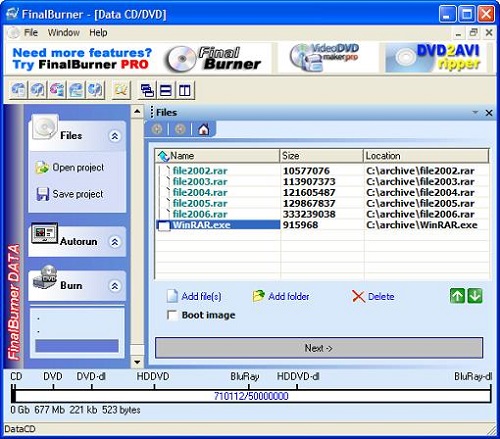
4. Click the Next button. The Burn screen shows up. Check all option fields to match:
Speed: 2x - 2823 kb\s
Name: Arch2006
Append last session: unchecked
Allow next session: unchecked
Test write: checked
Eject: checked
Buffer Underrun Protection: checked
Full erase: unchecked
5. Click the "Save ISO" button. Give C:\temp\arch2006.iso as the file name for the output ISO image file. FinalBurner took 1 minute to create the ISO image file.
Table of Contents
Audio CD (Compact Disc Digital Audio or CD-DA) Format
Audio CD (Compact Disc Digital Audio or CD-DA) Players
Audio CD (Compact Disc Digital Audio or CD-DA) Rip Music
MP3, MPEG-1 Audio Layer 3, Encoding Format
Archiving Files on CD - Compress with WinRAR
►Creating ISO 9660 Image with FinalBurner
Checking ISO 9660 Image with FinalBurner
Burning ISO 9660 Image to CD with FinalBurner
Validating the Finished Data CD
DVD (Digital Video Disc) Standard Format
TOC (Table Of Contents) on CDs
IsoBuster - A Nice CD GUI Tool
vStrip - Rip and Manipulate DVD VOB Files
mpgtx - Manipulating MPEG Files