CD-DVD Tutorials - Herong's Tutorial Examples - v2.23, by Dr. Herong Yang
Windows Media Player Settings
This section describes how to configure Windows Media Player to burn or record MP3 music on audio CD.
1. Insert a blank CD into the CD drive.
2. Start Windows Media Player.
3. Click the Burn tab. You may an error message: "The service cannot be started, either because it is disabled or because it has no enabled devices associated with it." This is most likely caused by the background service "IMAPI CD-Burning COM Service" being stopped.
3. To resolve the above issue, click Control Panel > Administrative Tools > Services. Find the service "IMAPI CD-Burning COM Service", and start it immediately.
4. Restart Windows Media Player. Click the Burn tab. You should see two empty lists: Burn List and Track List on Audio CD:
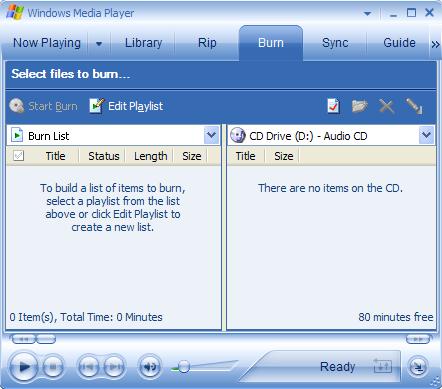
5. Click the "Display properties and settings" icon. The Properties dialog box shows up. Change the write speed to 4X to ensure a good burning quality.
Windows Media Player is ready to burn or record music files as audio tracks to audio CD now.
Table of Contents
Audio CD (Compact Disc Digital Audio or CD-DA) Format
Audio CD (Compact Disc Digital Audio or CD-DA) Players
Audio CD (Compact Disc Digital Audio or CD-DA) Rip Music
MP3, MPEG-1 Audio Layer 3, Encoding Format
►Burning MP3 Music to Audio CD
Steps to Burn MP3 Files as Audio Tacks
Adding MP3 Folder to Windows Media Player Library
►Windows Media Player Settings
DVD (Digital Video Disc) Standard Format
TOC (Table Of Contents) on CDs
IsoBuster - A Nice CD GUI Tool
vStrip - Rip and Manipulate DVD VOB Files
mpgtx - Manipulating MPEG Files