Windows Tutorials - Herong's Tutorial Examples - v5.62, by Dr. Herong Yang
Adding Files to a New RAR File
This section provides a tutorial example on how to add files to a new RAR file using WinRAR.
1. Run WinRAR and navigate the directory where your files are located.
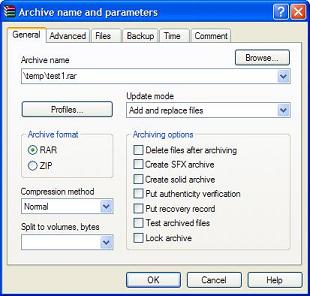
2. Select the files and/or directories that you want to add to a RAR file and select menu "Commands" > "Add files to archive". The "Archive name and parameters" dialog box shows up.
3. Enter the file and location of the new RAR file, like c:\temp\test1.rar, in the "Archive name" field and click the OK button as shown in the picture below:
4. The selected files and/or directories will be added to the RAR file.
5. Select menu File > Exit to close WinRAR.
6. Look at c:\temp\test1.rar. This is the RAR file that contains the selected files and/or directories
WinRAR seems to be more user-friendly than WinZip. It can takes files and directories together, and automatically adds sub-directories to the RAR file.
Table of Contents
Introduction to Microsoft Windows
Introduction to Windows Explorer
Introduction to Internet Explorer
"Paint" Program and Computer Graphics
GIMP - GNU Image Manipulation Program
JPEG Image File Format Quality and Size
GIF Image File Format and Transparent Background
"WinZip" - ZIP File Compression Tool
►"WinRAR" - RAR and ZIP File Compression Tool
Downloading and Installing WinRAR 3.42
►Adding Files to a New RAR File
Extracting All Files from a RAR File
Setting Passwords in RAR Files
Creating Multi-Volume RAR Files
Setting Windows Explorer Context Menu
Compressing Files with ZIP Format
Running WinRAR in a Command Line Window
FTP Server, Client and Commands
"FileZilla" - Free FTP Client and Server
Web Server Log Files and Analysis Tool - "Analog"
Spyware Adware Detection and Removal
IE Addon Program Listing and Removal
Vundo (VirtuMonde/VirtuMundo) - vtsts.dll Removal
Trojan and Malware "Puper" Description and Removal
VSToolbar (VSAdd-in.dll) - Description and Removal
Spybot - Spyware Blocker, Detection and Removal
Setting Up and Using Crossover Cable Network
Home Network Gateway - DSL Modem/Wireless Router
Windows Task Manager - The System Performance Tool
"tasklist" Command Line Tool to List Process Information
"msconfig" - System Configuration Tool
Configuring and Managing System Services
Windows Registry Key and Value Management Tools