Windows Tutorials - Herong's Tutorial Examples - v5.62, by Dr. Herong Yang
Introduction to "Paint" - The Simplest Graphics Tool
This section provides a quick introduction of 'Paint' program. A list of main features and a quick instruction on how to start are also included.
"Paint" is probably the simplest graphics tool available on a Windows system. It is very simple, but good enough to handle tasks of creating and editing computer graphics files with the following features:
- Support multiple graphics file formats, including BMP, JPEG, and GIF.
- Support monochrome and color graphics up to 16M (24-bit) colors.
- Support graphics rotating and flipping.
- Support graphics stretching and skewing.
- Support a number of interesting editing tools: Free-Form Select, Fill with Color, Pick Color, Magnifier, Brush, Airbrush, Text, Line, Curve, Polygon, Ellipse, Rounded Rectangle, etc.
Here is how to start and end "Paint" program:
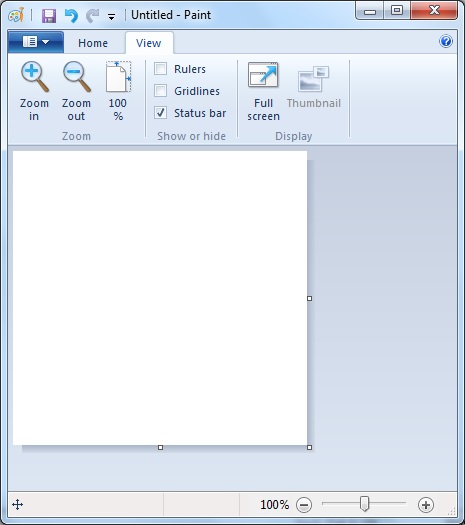
1. To start "Paint", Click "Start > All Programs > Accessories > Paint". Paint program starts with a blank graphic as shown in the picture below:
2. To end "Paint", click the Paint menu, then "Exit".
Table of Contents
Introduction to Microsoft Windows
Introduction to Windows Explorer
Introduction to Internet Explorer
►"Paint" Program and Computer Graphics
►Introduction to "Paint" - The Simplest Graphics Tool
Dots, Pixels, Colors and Resolution
Reducing the Size of a Picture File
Converting File Format from GIF to JPG/JPEG
GIMP - GNU Image Manipulation Program
JPEG Image File Format Quality and Size
GIF Image File Format and Transparent Background
"WinZip" - ZIP File Compression Tool
"WinRAR" - RAR and ZIP File Compression Tool
FTP Server, Client and Commands
"FileZilla" - Free FTP Client and Server
Web Server Log Files and Analysis Tool - "Analog"
Spyware Adware Detection and Removal
IE Addon Program Listing and Removal
Vundo (VirtuMonde/VirtuMundo) - vtsts.dll Removal
Trojan and Malware "Puper" Description and Removal
VSToolbar (VSAdd-in.dll) - Description and Removal
Spybot - Spyware Blocker, Detection and Removal
Setting Up and Using Crossover Cable Network
Home Network Gateway - DSL Modem/Wireless Router
Windows Task Manager - The System Performance Tool
"tasklist" Command Line Tool to List Process Information
"msconfig" - System Configuration Tool
Configuring and Managing System Services
Windows Registry Key and Value Management Tools