Unicode Tutorials - Herong's Tutorial Examples - v5.32, by Herong Yang
Opening UTF-8 Text Files
This section provides a tutorial example on how to open a UTF-8 text file with Nodepad correctly by selecting the UTF-8 encoding option on the open file dialog box.
According to the Notepad help information, Notepad support 3 Unicode encodings: Unicode, UTF-8, and big-endian Unicode. Let's try to use Notepad to open the UTF-8 text file, hello.utf-8, created from the previous chapter first.
1. Run Notepad and click menu File > Open. The open file dialog box comes up.
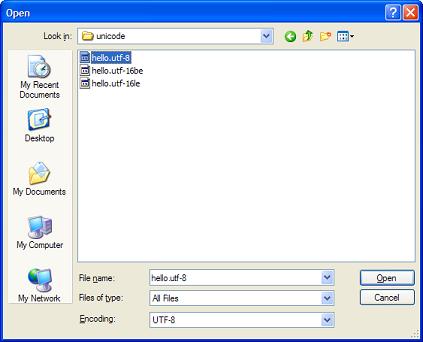
2. Select the hello.utf-8 text file and select the UTF-8 option in the Encoding field. See the picture below:
3. Click the Open button. The UTF-8 file opens in the editor correctly. See the picture below:
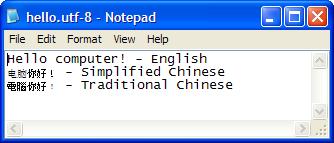
Very nice. This proves that Notepad can open UTF-8 text file correctly if the UTF-8 encoding option is selected.
If you select a different encoding, like Unicode, the UTF-8 text file will be opened incorrectly. Try it out yourself.
Table of Contents
ASCII Character Set and Encoding
GB2312 Character Set and Encoding
GB18030 Character Set and Encoding
JIS X0208 Character Set and Encodings
UTF-8 (Unicode Transformation Format - 8-Bit)
UTF-16, UTF-16BE and UTF-16LE Encodings
UTF-32, UTF-32BE and UTF-32LE Encodings
Python Language and Unicode Characters
Java Language and Unicode Characters
Encoding Conversion Programs for Encoded Text Files
►Using Notepad as a Unicode Text Editor
Byte Order Mark (BOM) - FEFF - EFBBBF
Saving Files in "Unicode Big Endian" Option
Saving Files in "Unicode" Option
Supported Save and Open File Formats
Using Microsoft Word as a Unicode Text Editor